For the complete documentation index, see llms.txt. This page is also available as Markdown.

Goals & Targets

The Goals & Targets page lets you (1) define your Ideal Customer Profiles (ICP) and Personas, and (2) configure your conversion events.

ICP & Personas

Define your Ideal Customer Profiles (ICP) and Personas so that LeadBoxer can automatically identify, tag, and find contacts for your outreach.

This feature improves lead qualification and sales focus by highlighting accounts and individuals that match your exact targeting criteria.

How It Works

  1. Define an ICP using:

    • Industry

    • Employee size

    • Country

  2. Define the matching Persona using:

    • Seniority level

    • Job title(s)

    • Country (can match ICP or be separate)

  3. When a company matches your ICP:

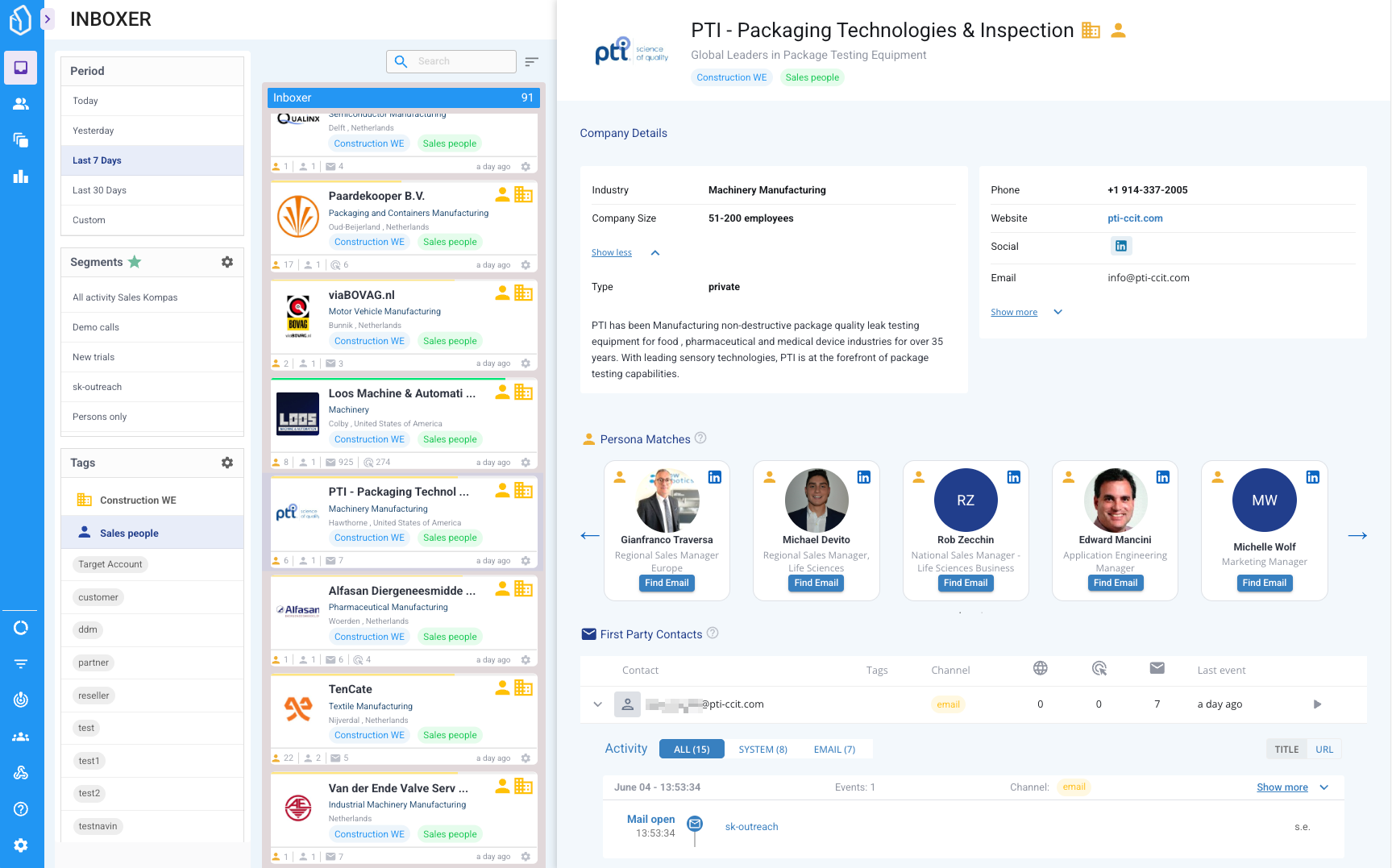
    • It will be tagged and surfaced in the App

    • Matching personas from that account will be listed in the account detail panel

  4. In the App, you can now:

    • Filter on ICP and Persona matches

    • View their professional profile including current and past jobs or titles, education, etc.

    • Gather the personas business email address

LeadBoxer Credits

Each LeadBoxer plan includes a monthly amount of LeadBoxer credits. Extra usage is billed as overage, so you can keep finding personas and email addresses after your included credits run out.

A successful persona match lookup uses 10 credits and a persona email lookup uses 25 credits.

See the LeadBoxer Credits page for more details

Overview table

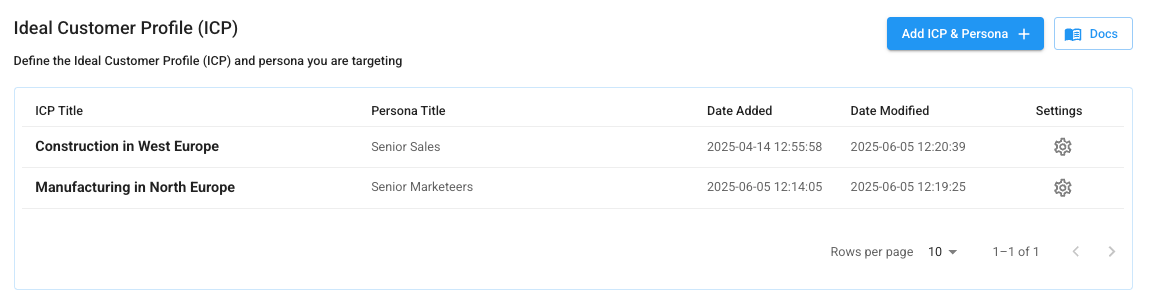
In the overview, you can add, edit and delete multiple ICP + Persona combinations.

How to add ICP & persona combo

  1. From the Goals & Targets page, click Add ICP & Persona button.

  2. This opens a window where you must define your ICP and Persona

  3. First define the ICP

  4. Then define the related Persona

  5. Save

ICP & Persona Form Fields

Below is a breakdown of each section in the form:

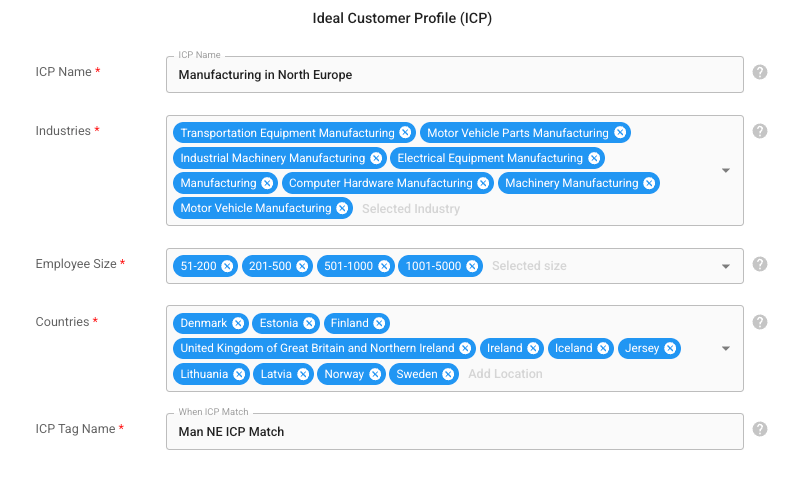
Ideal Customer Profile (ICP)

Field
Description

ICP Name

Internal name for the profile

Industries

Select one or more industries from the pre-defined list

Employee Size

Choose one or more company size ranges based on employee count

Countries

One or more countries or regions

ICP Tag Name

This label will appear in UI when a match is detected

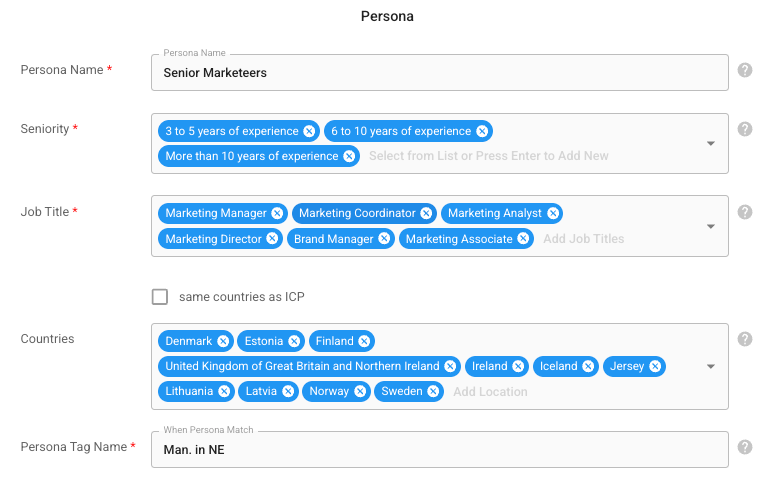
Persona

Field
Description

Persona Name

Internal name for the persona configuration

Seniority

Experience level or decision-making authority

Job Title(s)

Select one or more job titles or departments

Countries

Country filters (can differ from ICP)

Persona Tag Name

This label will appear when a persona match is found

Note: You can link Persona countries to the ICP using the “same countries as ICP” checkbox.


Best Practices

  • Use specific job titles and seniority filters to minimise false positives.

  • Create multiple ICP + Persona pairs for different segments or product lines.

  • Revisit and refine your definitions periodically based on lead quality and conversion rates.


Conversion Target Events

The Conversions / Target Events page lets you define which website or behavioural events are considered critical milestones or conversions in your lead journey. These target events are highlighted throughout the application and are available for filtering, reporting, and automation.

This feature helps you focus on meaningful interactions such as signups, demo requests, or form submissions.

How It Works

Each event is defined using a combination of:

  • A name (used throughout the app and reports)

  • A URL pattern to match the event (e.g., exact URL or partial match)

  • An optional description to clarify what the event represents

Once defined, these target events:

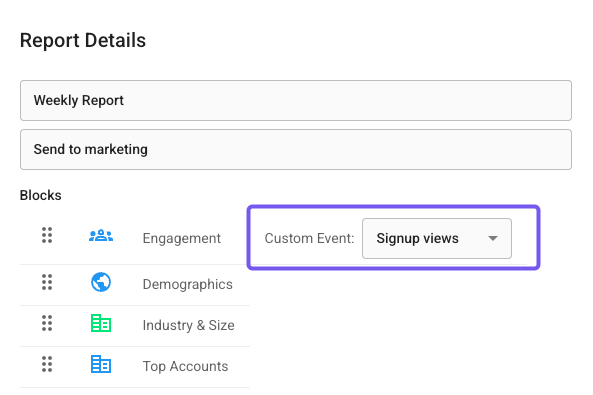
  • Can be selected in custom reports (as metrics)

See Target events In your Reports

Target events can be added as custom metrics within reports. This allows you to:

  • Track conversion rates over time

  • Compare different lead segments by conversion behaviour

  • Visualise the impact of marketing or sales efforts

To use a defined event in reports:

  1. Navigate to the Reports section

  2. Add or edit a report

  3. in the Select a custom metric and choose your target event(s)

Last updated

Was this helpful?