> For the complete documentation index, see [llms.txt](https://help.leadboxer.com/leadboxer/llms.txt). Markdown versions of documentation pages are available by appending `.md` to page URLs; this page is available as [Markdown](https://help.leadboxer.com/leadboxer/using-the-app/elements/lead-tags.md).
# Lead & Account Tags
### What are Lead Tags?
Lead Tags are tags or labels you can add to individual leads /users so you can easily see if they belong to a certain categorie.
### What are Account Tags?
Similar to Lead Tags, Account Tags allow you to tag leads or users, but account tags work a bit differently. If you set an Account Tag, LeadBoxer will apply this tag to all historical Leads from the same Account (organisation / company) AND all leads from this Account going forward.
### Why would I want to tag my Leads or Accounts?
Once you start tagging your leads, you can use the 'lead tag' filter to include or exclude leads from your filter pre-sets (views)/ segments.
In plain English: (1) tag leads into general categories such as (existing) Customer, or Competitor, and then (2) filter your leads on these tags.
### Getting started with Lead Tags
Using tags is simple, and involves just 2 steps:
1. **Manually tag a lead**\
Using the LeadBoxer interface you can manually tag your leads in 2 different places: On the Lead details section or in the Leads & Accounts view. We have added 4 default tags: Competitor, Customer, Key account and Partner. You can add additional tags yourself. There is a hard limit of 100 tags.
2. **Set your Lead Tag filter**\
Once you have added lead tags to your leads, you can use the filters to include or exclude them from/ to your Segments.
***
## Automatically tag leads
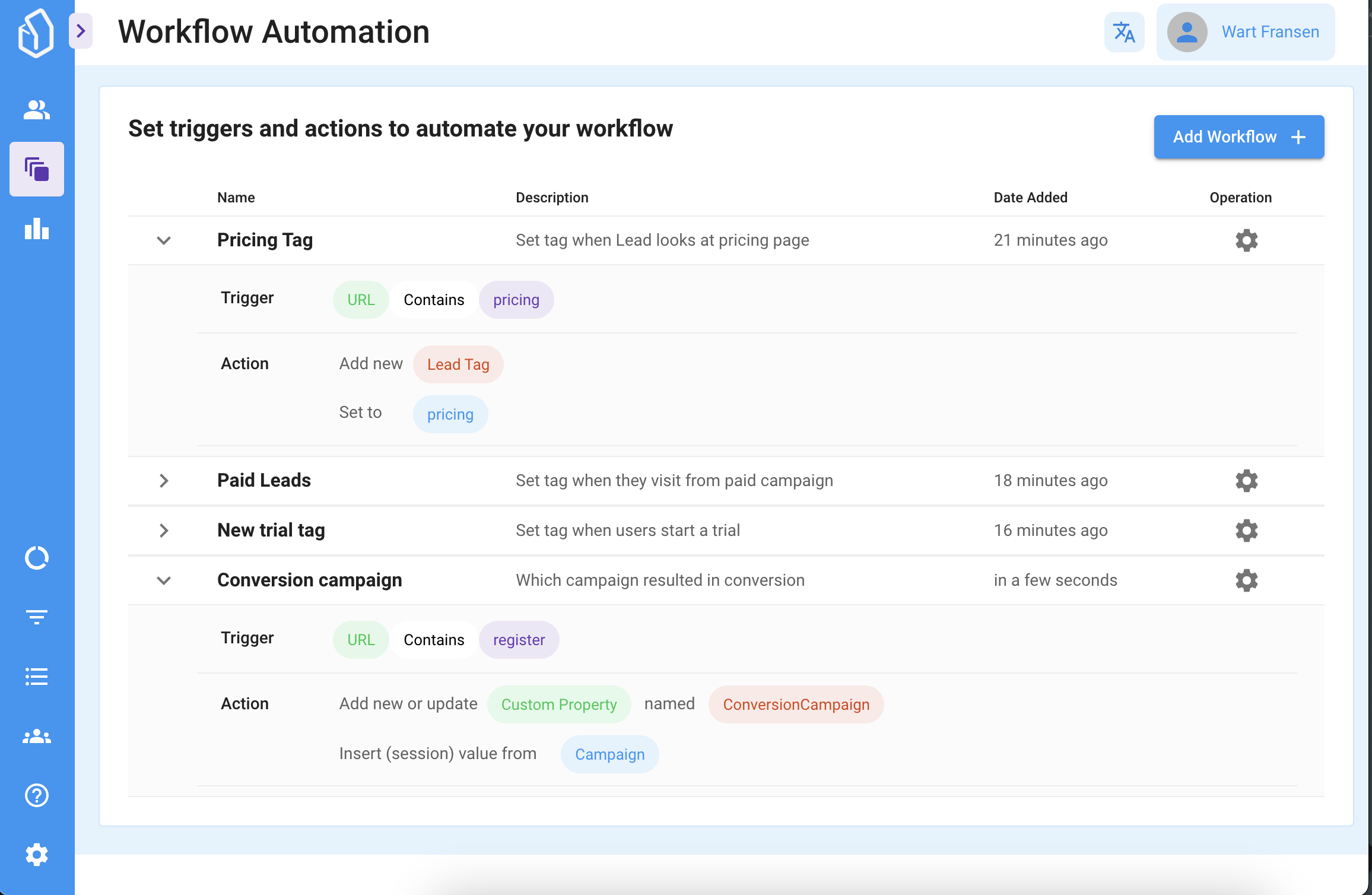
There are 2 options, using **Workflow Automation** or using the **LeadBoxer API**
### 1. Workflow Automation
Use the **Add lead tag** action to automatically create or add a tag to lead based on a trigger. For example a specific page, or country.
See the Complete [Workflow Automation](/leadboxer/using-the-app/elements/workflow-automation.md) docs for more details.\
### 2. API
To tag leads automatically from your own systems, for example when a customer logs in to your site, use the [Update Lead Tags](https://developers.leadboxer.com/reference) call of the LeadBoxer API.
In other words: LeadBoxer monitors all traffic on your site and identifies companies and leads. By tagging everybody who logs in as a customer, you can filter your existing clients out of your lead views.
{% hint style="warning" %}
The API needs your LeadBoxer API key. Never put the API key in your website's JavaScript, where every visitor can read it. Call the API from your server (backend) instead.
{% endhint %}
**How it works**
1. In your website, read the visitor's LeadBoxer ID with `ot_uid()` (available once the LeadBoxer pixel has loaded) and send it to your own server, for example with the login request.
2. On your server, call the LeadBoxer API with your API key to set the tags.
**Website (browser)**
{% code overflow="wrap" %}
```javascript
```
{% endcode %}
**Your server (Node.js example)**
{% code overflow="wrap" %}
```javascript
// PUT /v1/management/lead-tags replaces all tags of the lead with the list you send.
// To add a tag and keep the existing ones, include the existing tags in the list.
async function tagCustomer(leadId) {
await fetch("https://api.leadboxer.com/v1/management/lead-tags", {
method: "PUT",
headers: {
"x-api-key": process.env.LEADBOXER_API_KEY,
"Content-Type": "application/json"
},
body: JSON.stringify({
datasetId: "yourDatasetId",
leadId: leadId,
leadTags: "customer" // comma-separated, e.g. "customer,key account"
})
});
}
```
{% endcode %}
#### **Add, remove & overwrite tags**
The call sets the complete list of tags for the lead:
* **Add** a tag: send the existing tags plus the new one. You can read a lead's current tags with [Retrieve Lead Details](https://developers.leadboxer.com/reference) (`GET /v1/leads/{leadId}`).
* **Remove** a tag: send the existing tags without it.
* **Remove all** tags: send an empty `leadTags` value.
See the [Developer Portal](https://developers.leadboxer.com/) for authentication, rate limits and the full API reference.
---
# Agent Instructions
This documentation is published with GitBook. GitBook is the documentation platform designed so that both humans and AI agents can read, navigate, and reason over technical content effectively. Learn more at gitbook.com.
## Querying This Documentation
If you need additional information that is not directly available in this page, you can query the documentation by asking a question.
Perform an HTTP GET request on the following URL with the `ask` and `goal` query parameters:
```
GET https://help.leadboxer.com/leadboxer/using-the-app/elements/lead-tags.md?ask=&goal=
```
`ask` is the immediate question: it should be specific, self-contained, and written in natural language.
`goal` is what the user is ultimately trying to achieve, the reason they need the answer. Sharing it helps GitBook give you a better, more relevant answer. A goal is most helpful when it describes the outcome the user wants rather than restating the question. For example, with `ask=how do I create an API token`, a goal like `automate deployments from our CI pipeline` lets GitBook tailor the answer to that use case.
The response will contain a direct answer to the question and relevant excerpts and sources from the documentation.
Use this mechanism when the answer is not explicitly present in the current page, you need clarification or additional context, or you want to retrieve related documentation sections.
.png?alt=media)
%20(3).png?alt=media)
%20(1).png?alt=media)