> For the complete documentation index, see [llms.txt](https://help.leadboxer.com/leadboxer/llms.txt). Markdown versions of documentation pages are available by appending `.md` to page URLs; this page is available as [Markdown](https://help.leadboxer.com/leadboxer/using-the-app/inboxer.md).

# Inboxer

## Inboxer View: Documentation

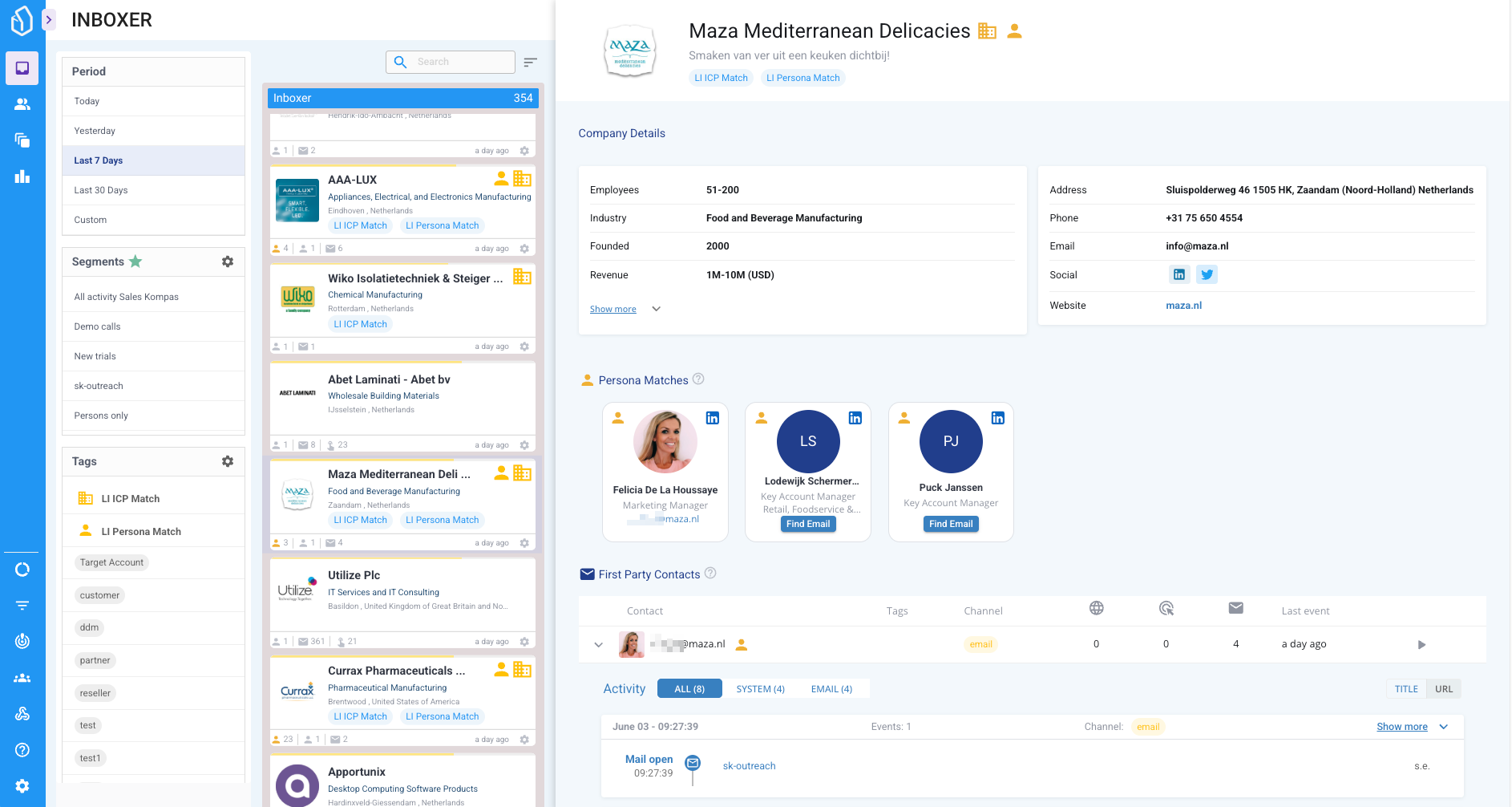
Inboxer is the (new) default view of LeadBoxer App. It is designed to discover and prioritise company engagement insights — enabling you to act on high-intent leads quickly and efficiently.

<figure><img src="https://3748765316-files.gitbook.io/~/files/v0/b/gitbook-x-prod.appspot.com/o/spaces%2Fy0YIHtmtqLfLnxMS5laM%2Fuploads%2Fgit-blob-a3491d388c6395543ece3ea8774fd0b4efefb5a6%2FSCR-20250604-juge-2.png?alt=media" alt=""><figcaption><p>Screenshot Inboxer 2025</p></figcaption></figure>

***

### Interface Overview

Inboxer is divided into three main areas:

<table><thead><tr><th width="145.91796875">Section</th><th>Purpose</th></tr></thead><tbody><tr><td>Left Sidebar</td><td>Apply filters: date range, segments, and tags</td></tr><tr><td>Centre Panel</td><td>View Lead Cards with real-time activity and ICP/Persona signals</td></tr><tr><td>Right Panel</td><td>Inspect detailed company profiles, contacts, personas, and engagement data</td></tr></tbody></table>

***

### Account Cards (Centre Panel)

Each company or organisation is displayed as a Account Card. The list is chronological, sorted on recent activity.

<table><thead><tr><th width="220.34375">UI Element</th><th>Function / Description</th></tr></thead><tbody><tr><td>Company Logo &#x26; Name</td><td>Visual anchor, quick recognition</td></tr><tr><td>Location &#x26; Industry</td><td>Contextual info about the lead</td></tr><tr><td>Coloured Line (Top)</td><td>Indicates Lead Score intensity</td></tr><tr><td>Metrics</td><td>Visitors, events, email opens, last seen timestamp</td></tr><tr><td>Tags</td><td>Includes ICP Match, Persona Match, or custom tags</td></tr><tr><td>Gear Icon</td><td>Opens quick actions: delete or add to LeadBoard</td></tr><tr><td>Drag to Hotspots</td><td>Assign leads to boards or delete with intuitive drag-and-drop</td></tr></tbody></table>

> ICP = Ideal Customer Profile

> Persona = Buyer Role match based on your definitions

***

### Filters (Left Sidebar)

These filters refine the leads shown in your Inboxer timeline:

#### 1. Period

Choose a date range:

* Today, Yesterday, Last 7 Days, Last 30 Days, or Custom.

#### 2. Favourite Segments

Segments marked as favourites (⭐) in the Segments overview. These are pre-filled at account creation and editable anytime.

<br>

#### 3. Tags

Key for lead qualification workflows. System-generated tags such as:

* ICP Match
* Persona Match
* Plus: Custom user-defined tags (e.g. Customer, Partner, Hot Lead, etc.)

***

### Account Details Panel (Right Side)

Clicking an Account Card opens a detailed view with deep insights.

#### Company Info

<table><thead><tr><th width="192.9453125">Field</th><th>Example from Screenshot</th></tr></thead><tbody><tr><td>Employees</td><td>51–200</td></tr><tr><td>Industry</td><td>Machinery Manufacturing</td></tr><tr><td>Revenue</td><td>10M–50M USD</td></tr><tr><td>Address</td><td>Colby, Wisconsin, USA</td></tr><tr><td>Website</td><td><a href="http://loossmachine.com">loossmachine.com</a></td></tr><tr><td>Contact Info</td><td>Email &#x26; phone listed</td></tr><tr><td>Social Links</td><td>LinkedIn, Twitter, Facebook</td></tr><tr><td>Tech Stack</td><td>E.g. Microsoft 365, Typekit, Squarespace, Tawk</td></tr></tbody></table>

***

### Individuals Breakdown

#### 1. Persona Matches

People who match your ICP + Persona criteria:

<table><thead><tr><th width="225.8671875">Field</th><th>Example</th></tr></thead><tbody><tr><td>Name &#x26; Role</td><td>Stacy S, Sales Marketing Director</td></tr><tr><td>Profile Data</td><td>Includes LinkedIn icon, photo</td></tr><tr><td>Hover-over Info</td><td>Shows matching ICP + Persona pair</td></tr><tr><td>CTA</td><td>“Find Email” button</td></tr></tbody></table>

#### 2. First Party Contacts

Identified users based on:

* Email opens/clicks, form submissions, logins

<table><thead><tr><th width="228.3671875">Field</th><th>Example</th></tr></thead><tbody><tr><td>Contact</td><td>Email or Name (e.g. Stacy Schnabel)</td></tr><tr><td>Tags</td><td>Installed, Target Audience, etc.</td></tr><tr><td>Channel</td><td>Email, Web</td></tr><tr><td>Events</td><td>Pages, Clicks, Opens</td></tr><tr><td>Last Event</td><td>Timestamp of most recent activity</td></tr></tbody></table>

#### 3. Website Visitors

Unidentified individuals from the same company IP

<table><thead><tr><th width="242.5859375">Field</th><th>Example</th></tr></thead><tbody><tr><td>Contact</td><td>Visitor 1</td></tr><tr><td>Tags</td><td>Target Audience</td></tr><tr><td>Channel</td><td>Web</td></tr><tr><td>Events</td><td>Page views, system events</td></tr><tr><td>Last Event</td><td>e.g. 2 months ago</td></tr></tbody></table>

> Click any visitor or contact row to drill into full behavioural and session-level details.

***

### Hotspot Actions

At the bottom of the Lead Card column are Hotspot Drop Zones:

| Zone             | Action                        |
| ---------------- | ----------------------------- |
| 🟩 Move to Board | Assign lead to a saved board  |
| 🟥 Delete        | Remove from inbox permanently |

Drag a lead card onto these zones for immediate results.

***

### Summary

Inboxer is your daily operational hub for:

* Monitoring real-time company engagement
* Process leads with fast tagging and scoring
* Surfacing ICP & Persona matches automatically
* Accessing detailed contact and session data

It combines power and usability into a single, efficient lead intelligence interface.


---

# Agent Instructions
This documentation is published with GitBook. GitBook is the documentation platform designed so that both humans and AI agents can read, navigate, and reason over technical content effectively. Learn more at gitbook.com.

## Querying This Documentation
If you need additional information that is not directly available in this page, you can query the documentation by asking a question.

Perform an HTTP GET request on the following URL with the `ask` and `goal` query parameters:

```
GET https://help.leadboxer.com/leadboxer/using-the-app/inboxer.md?ask=<question>&goal=<user_goal>
```

`ask` is the immediate question: it should be specific, self-contained, and written in natural language.
`goal` is what the user is ultimately trying to achieve, the reason they need the answer. Sharing it helps GitBook give you a better, more relevant answer. A goal is most helpful when it describes the outcome the user wants rather than restating the question. For example, with `ask=how do I create an API token`, a goal like `automate deployments from our CI pipeline` lets GitBook tailor the answer to that use case.

The response will contain a direct answer to the question and relevant excerpts and sources from the documentation.

Use this mechanism when the answer is not explicitly present in the current page, you need clarification or additional context, or you want to retrieve related documentation sections.
